Git & Github 17 December 2025
Welcome to our first Git & Github course!
Hi 👋 My name is Serena — Data Scientist Epidemiology / Neuroscience / Psychology
Disaclaimer time: I am not an expert
I use these tools daily and find them, honestly, really useful
Today, I’ll walk with you as you:
Git and GitHub into your daily workGit and get it working smoothly with GitHub No previous experience required, beside a general familiarity with data analysis.
You will get the most out of this workshop if you are an R user.
It is not a complete guide. It is more of a Git-starter pack for research / teaching activities.
Hungry for more?
There are a lot of excellent Git/Github tutorial materials online.
Check out the Resources at the end of this presentation for some suggestions.
You already have:
Git installedR and RStudio (or Positron) up-to-datehelp question done

Git)?GitHub)?Git/GitHub concepts I keep in my purseGit wins: some basic workflows for everyday lifeGithub
Github Pages, Search, and Actions
Yes.
Before you can get started, you have to: install Git and set it up properly to talk to GitHub.
This is one-time or “once-per-computer” pain & we will do it together
Beginner–intermediate use requires(small) changes to your normal, daily workflow: e.g. dedicate a directory to each project, make it a git repository, periodically make commits and push them to Github.
It feels weird at first but quickly becomes second nature & we will do it together
Advanced GitHub use, e.g. to work with other people or coordinate your own work from multiple computers? Knock-knock — Who’s there? — merge conflicts.
This is not one-time pain but the best remedy is prevention, which we do today
Excuse me, do you have a moment to talk about
version control ?



I can think of two main reasons:
The noble reasons
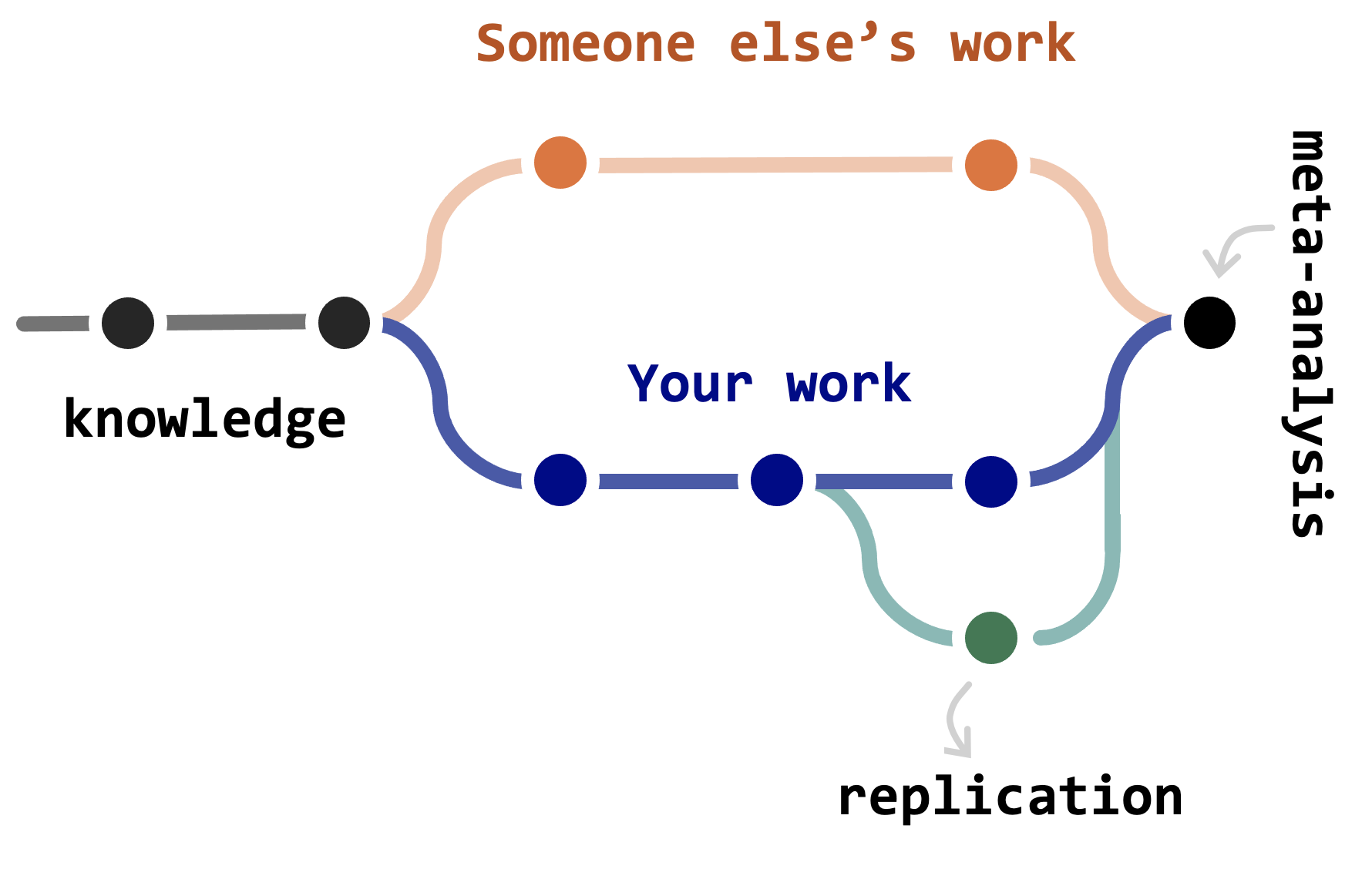
Science is in bad shape people.
Replicability and traceability of scientific claims is horrifyingly insufficient, across fields.
You analysis is the scientific product, the paper is just advertisement.
And analyses should (in principle)
be directly accessible to others,
or at least carefully
documented…

The selfish reasons
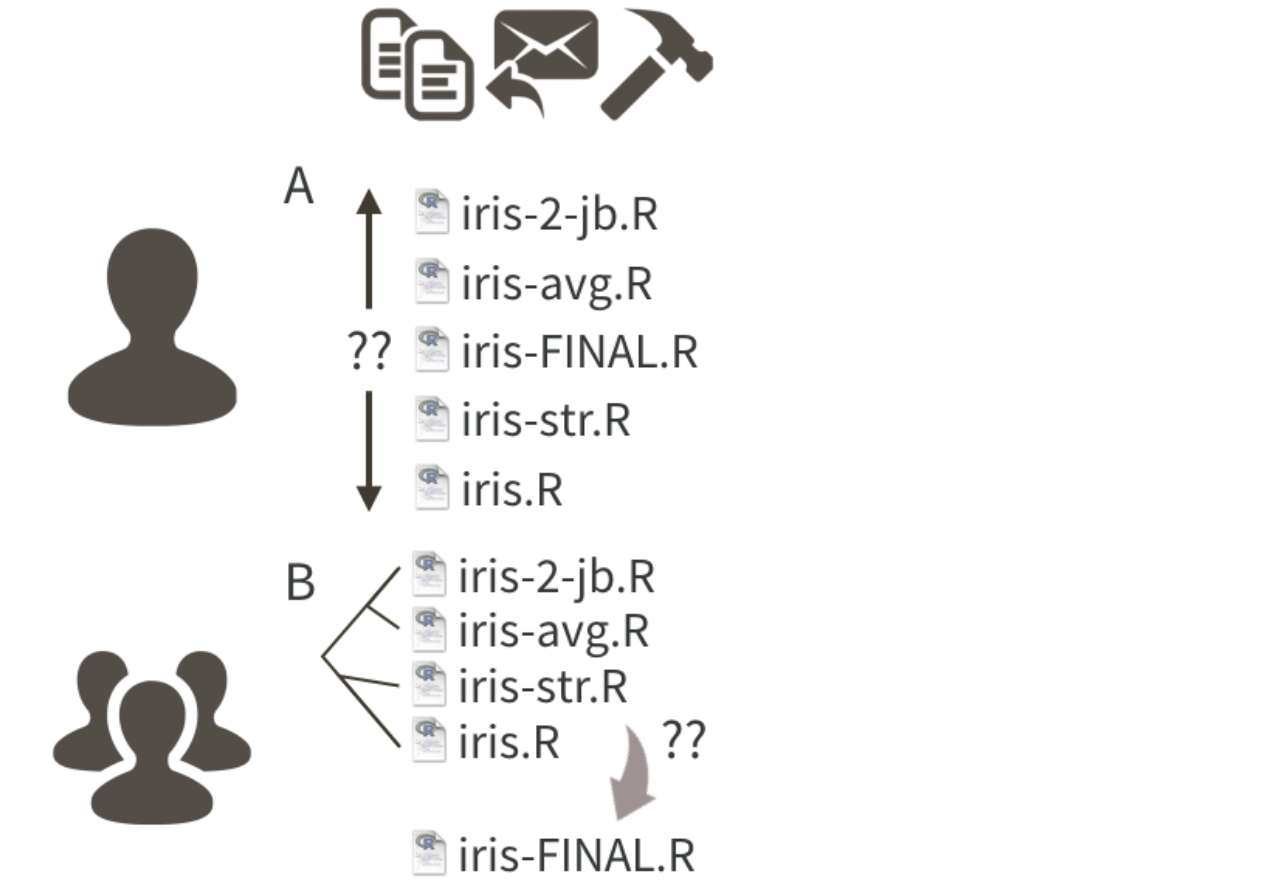
Research produces many files: data files, figures, tables, docs, slides, and (yes) code…
Most of these files evolve over the course of a project and often need to be shared with others.
Without explicit and structured management, project organization can easily descend into chaos, and taking your mental wellbeing with it (ask me how I know…)

This unhappy result can be avoided by repurposing tools and workflows from the software development world.
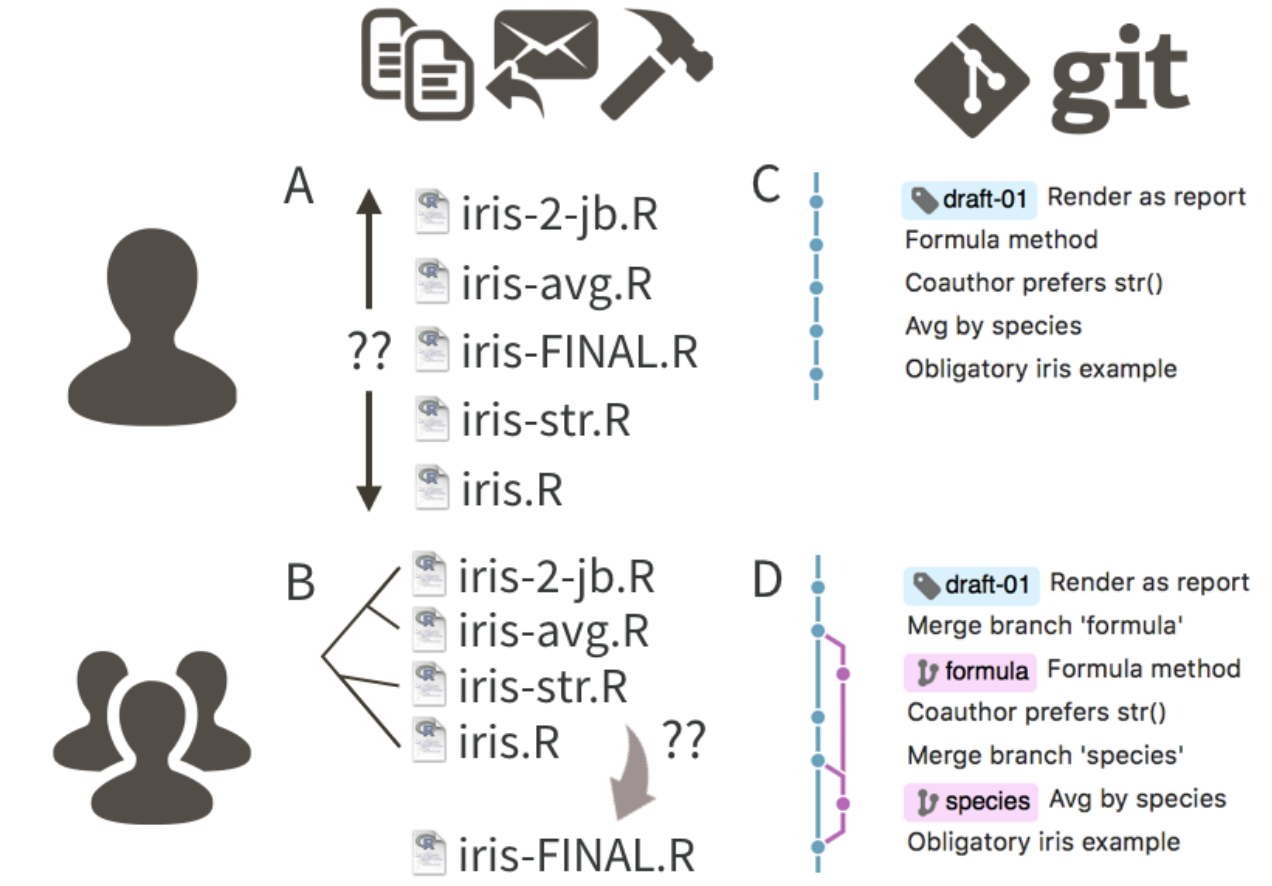
Git?Git is a version control system.
It manages the evolution of a set of files (a repository or repo) in a sane, highly structured way.
Git’s original purpose was to help groups of developers work collaboratively on big software projects.
It is like a “TrackChanges” feature from Microsoft Word, but more rigorous, powerful, and scaled up to multiple files.
It enables the distribution of any file across different people, computers, and across time.
Git was not built for you.
You will undoubtedly notice this, so it’s best to know in advance.

Git’s model of file management can feel uncomfortably rigid, especially for beginners.
Happily, there are many helpful tools that mediate your interactions with Git.


GitHub?GitHub complements Git by providing a polished user interface and distribution mechanism for Git repositories.
Git = software you use locally to record changes to a set of files.GitHub = hosting service that provides a Git-aware home for such projects on the internet.GitHub is like DropBox or Google Drive, but much, much better.
It allows others to browse project files, explore their history, sync up with the current version, and even propose or make changes.
Many operations can be done entirely in the browser, including editing or adding files.
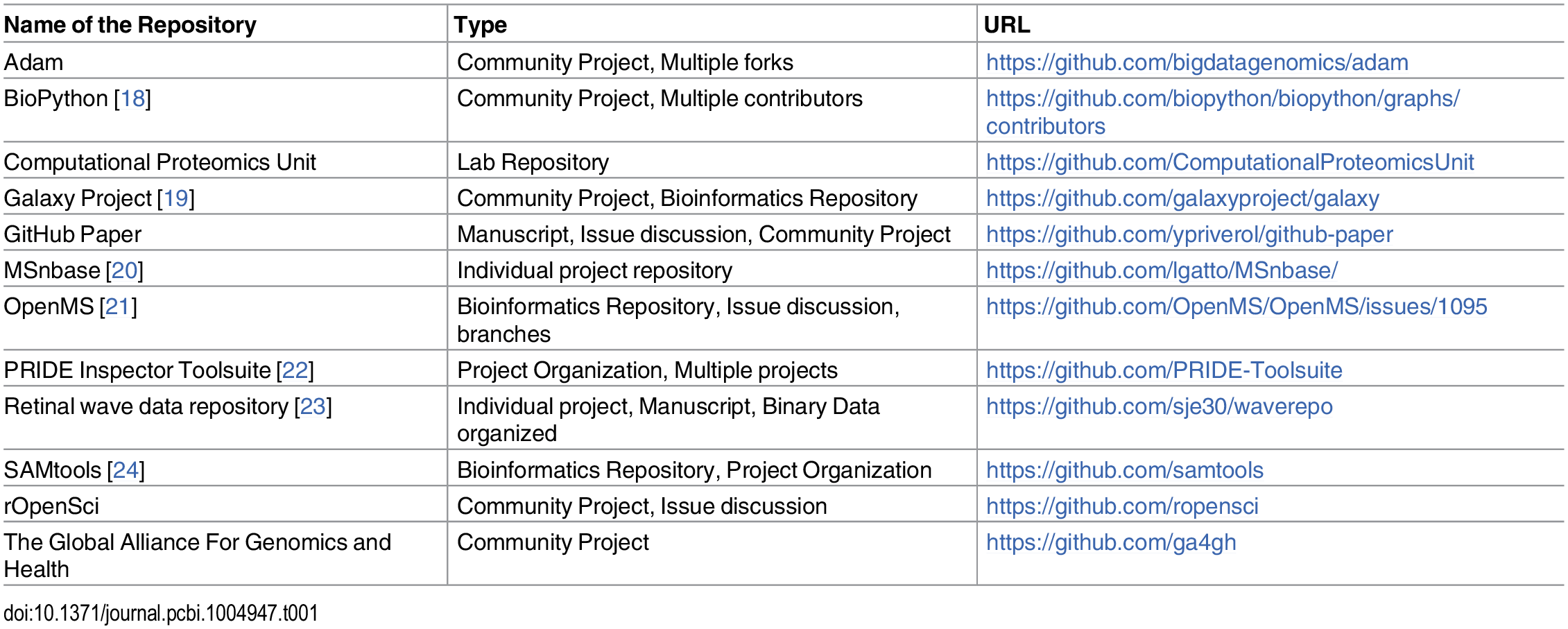
A diverse range of efforts (from individual, to labs, to global collaborations) have chosen GitHub as productive place to share code and ideas
In a nutshel: doing your work becomes tightly integrated with organizing, recording, and disseminating it. It’s not a separate, burdensome task you are tempted to neglect.
GitHub and move on with your life.GitHub also makes a fantastic course management system for teachers.Git is WIDELY used outside these walls (required for most job positions).FundamentalGit / GitHub concepts and jargon


Let’s talk a bit more about Git.
In this section we will:
Git vocabularyKeep in mind that actual usage is the most effective way to build up a good mental model for Git, so don’t worry if some concept don’t feel so clear just yet
Once again, there many excellent external Resources at the end of the presenation.
Recall: Git manages the evolution of a set of files
Such set of files (or directory) is called a repository (repo for friends).
A repository can be public or private.
The owner of a repo can grant permission to others (collaborators): e.g. read (only relevant for private repos), write (push) and admin access.
A repo can be owned by a person or by an Organization.
A commit is a snapshot of one or more files inside a repository.
Instead of saving a copy of a file, versioning it chaging it’s name (e.g. “[…] _v2” or “[…] _SD”), you create a commit.
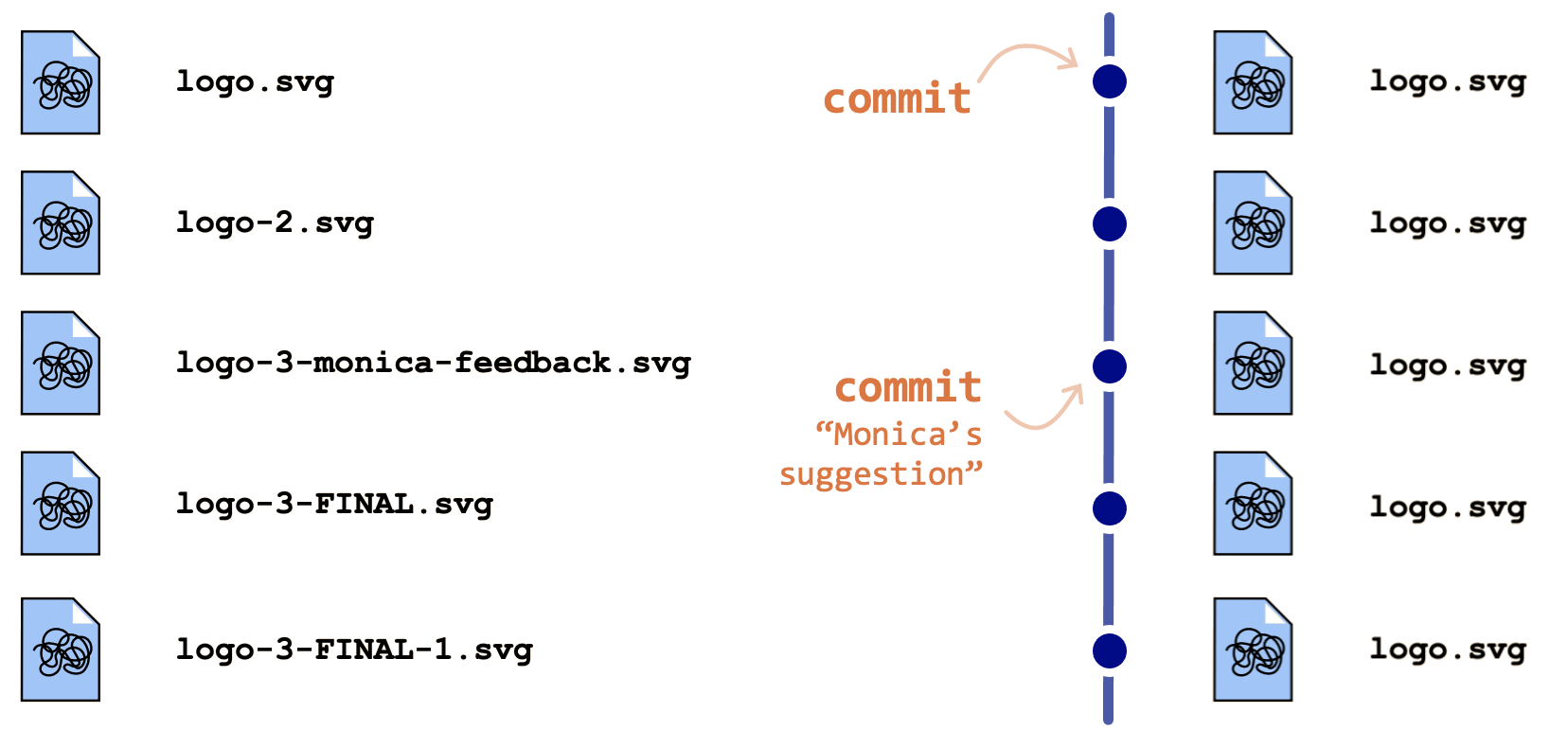
On the surface nothing changes, but the history of that file is secretly saved, including metadata (e.g. author, date, message)
You can add information about the changes you made in a commit message
Actually, Git commits happen in two distinct steps (though they are often used together).
git add): tell Git which changes from your repo you intend to include in the next commit.git commit): take what is in the staging area and create a new commit object in the repo’s history, with its message and unique ID.Why is this useful?
Recall: a commit is a snapshot of one or more files
Staging lets you split your work into logical commits, even if you edited many files or made mixed changes in the same file.
For example, you can stage only the lines related to a bugfix and commit them separately from formatting changes, improving history readability and making review and rollback easier.
Commits help you tell the story of your project (to yourself and to other people).
But it does not end there… Git also lets you time travel through your project.
Getting the files from a commit in the past is known as doing a check out
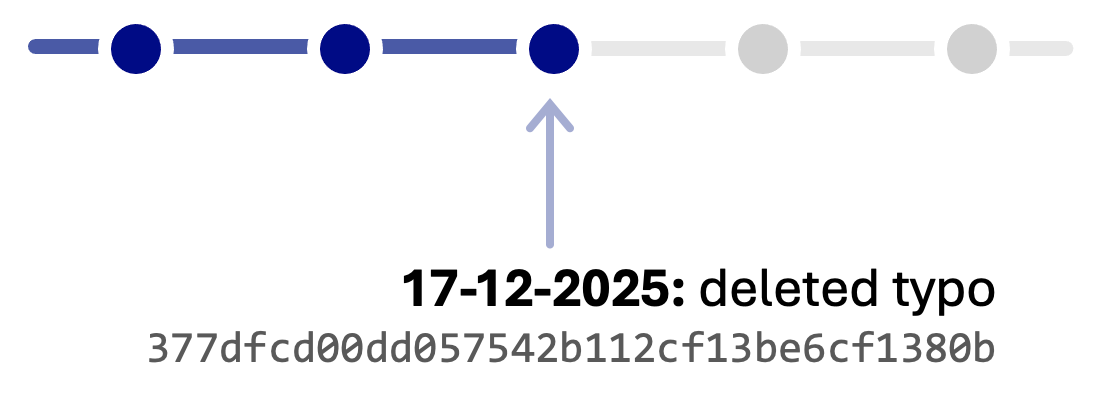
Recall: each commit has a unique ID called a hash.
You can tell Git what commit I want to check out using (part of) the commit hash.
My other commits still exist, but when I look in my repo, it’s as if they never happened.
You can also give certain commits a special name (a tag) that you can then use to refer to them during time travel e.g. people often use tags for software versions.
So far, everything has been very linear and ordered. The thing is… this isn’t really how projects work.
Sometimes you want to try something out, make experiments.
The way you do this in Git is with branches
A branch is a moveable label attached to a commit.
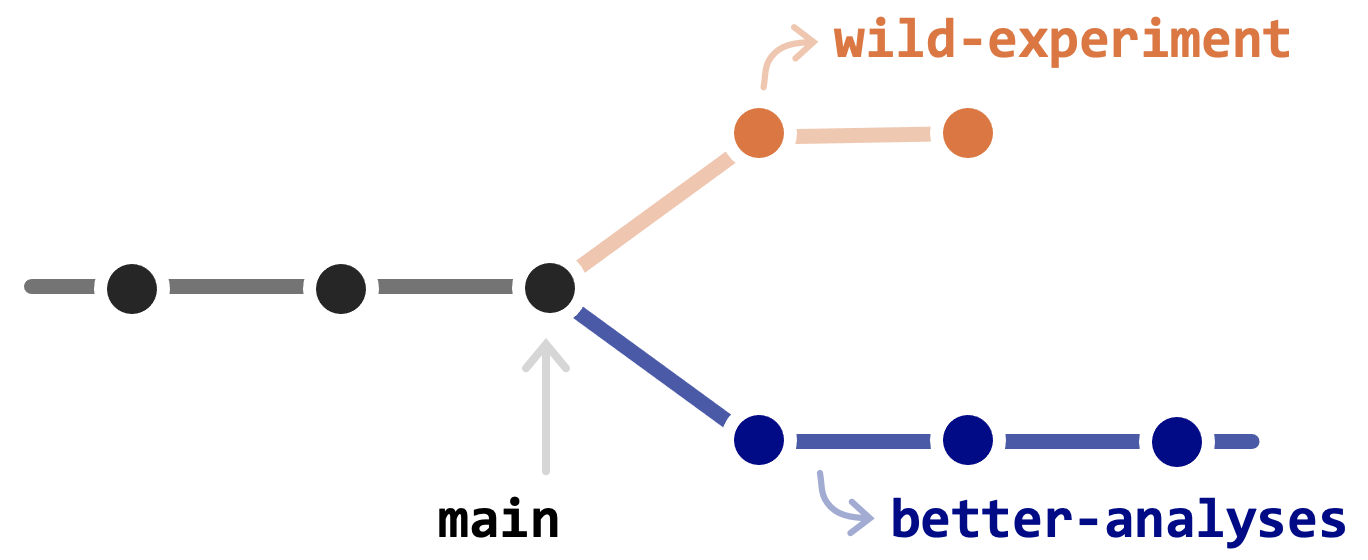
The default branch name in Git is main (not master!)
It’s common for the main branch to hold a stable version of the code or files, while other branches contain work in progress.
Branches are easy to throw away if you decide you don’t like your changes.
But if you are happy with some work, you typically want to combine it back into the main branch.
To get changes from one branch into another, you merge them.
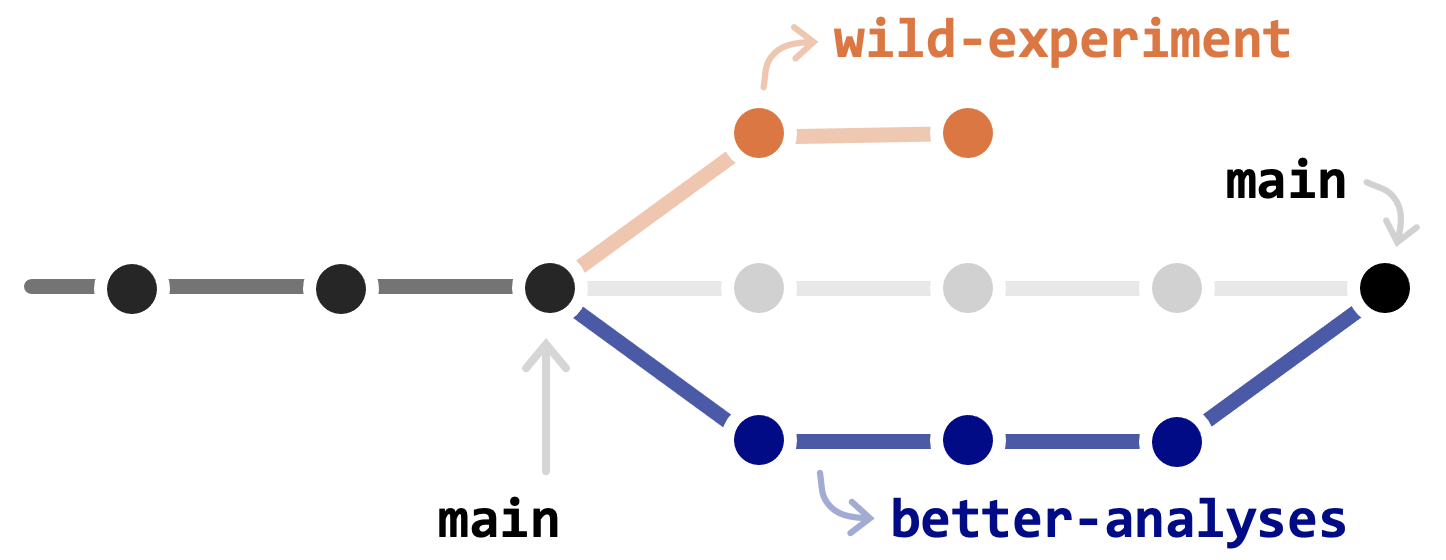
This last commit is a combination of all of the commits from both branches.
* Different collaborators can work on different branches independently!
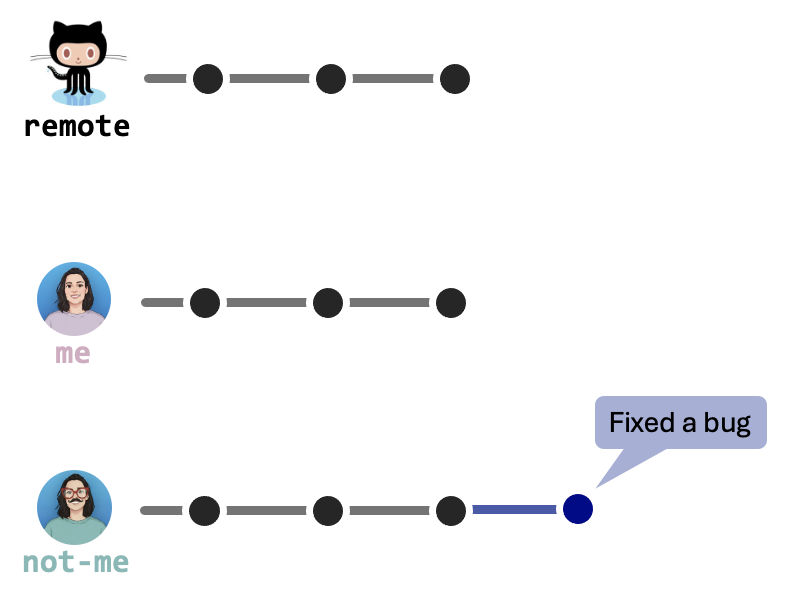
Everyone knows that you should back up your work regularly, ideally somewhere geographically distinct from your computer.
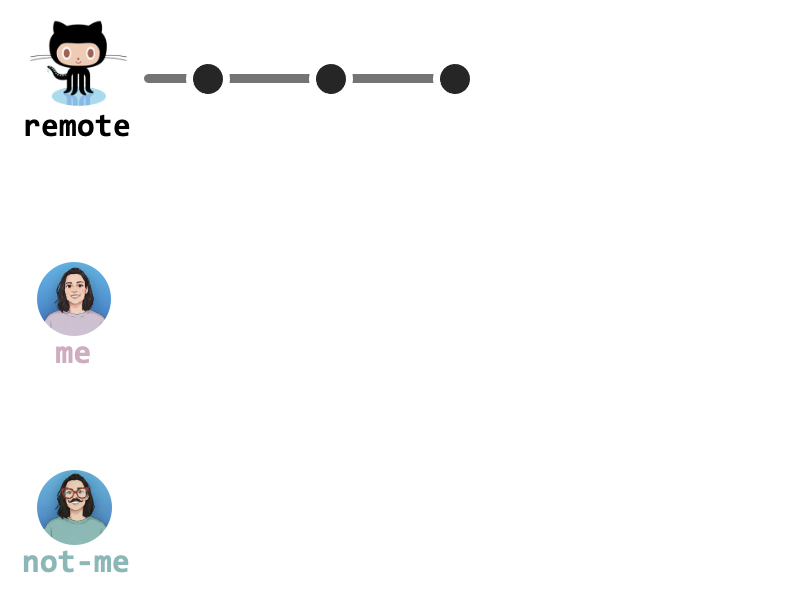
In Git this place is called a remote. A very popular place to put your remotes is Github.
Having a remote copy of your repos has several advantages:

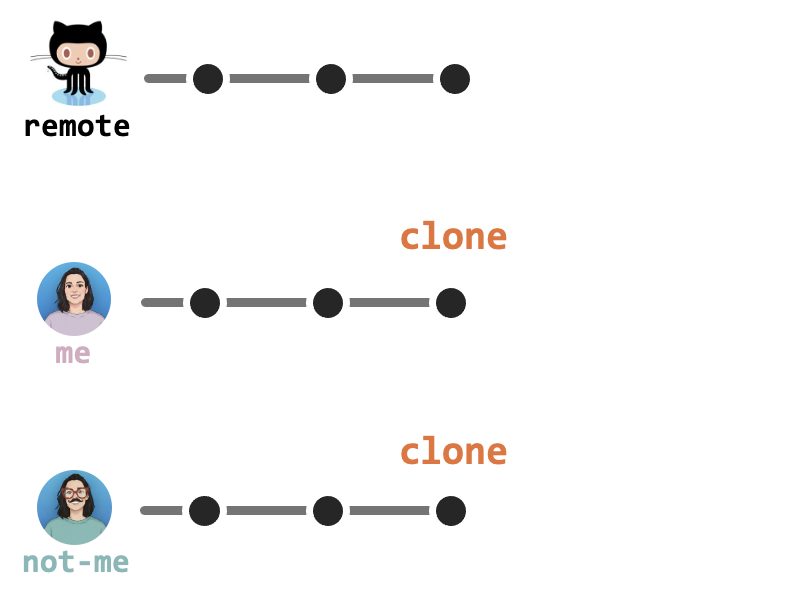
To get some work from a remote on your local computer (for the first time) you clone it.

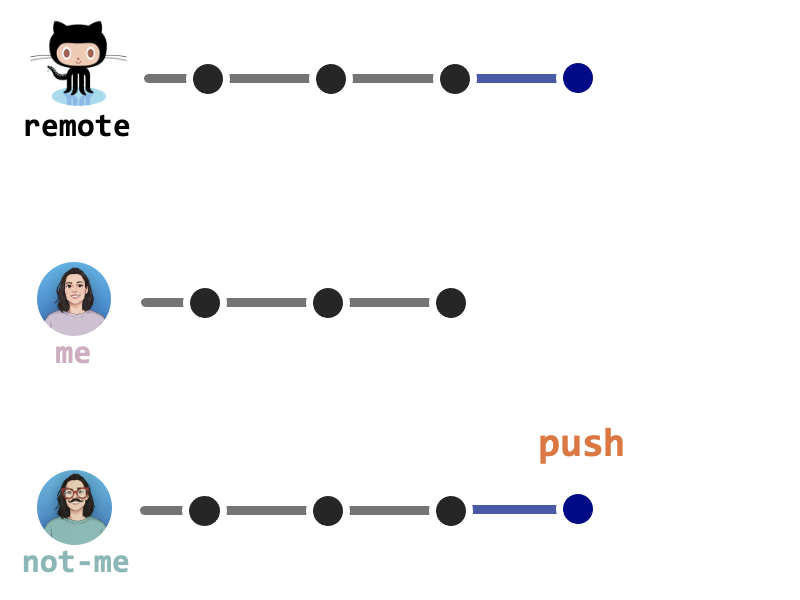
To send new updates to the remote you push
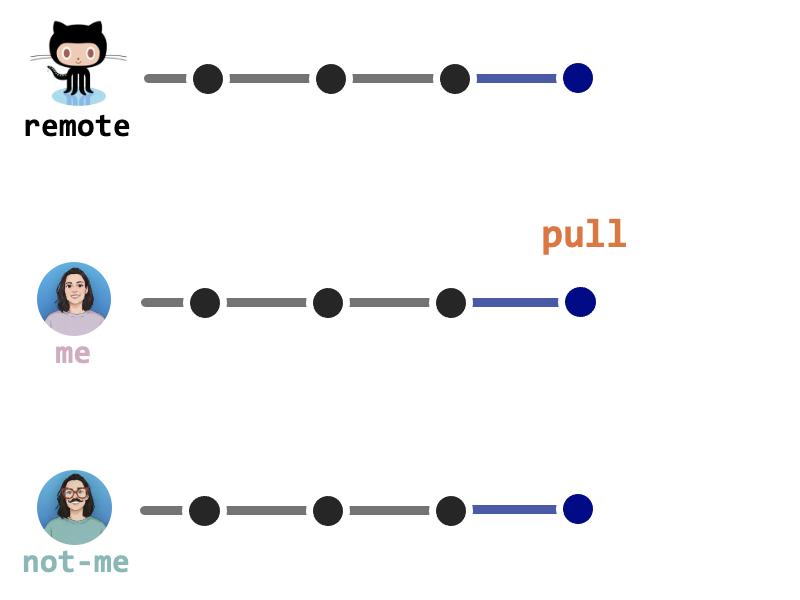
To get new updates (commits) from the remote you pull
Cloning is a client-side Git operation: it creates a local copy of a remote repo.
When you are not a collaborator on the original repo (e.g., open-source contributions), you usually want your own independent remote to work with.
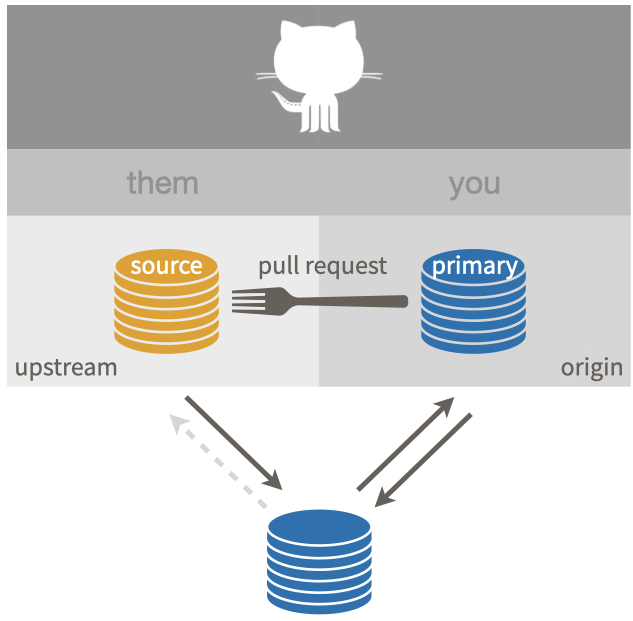
Forking creates a new remote copy of someone else’s repo (the upstream repo), under your user.
To propose changes back to the original, you’ll use a pull request (PR) instead of pushing directly.
GitHub’s got IssuesIssues are essentially a list of things: bugs, feature requests, to-dos, whatever
Issues are handy for project management becasue they can be assigned to people (e.g., to-dos) and tagged (e.g. bug or progress-report).
They are tightly integrated with:
Tip
As a new GitHub user, one of the most productive things you can do is to use GitHub issues to provide a clear bug report or feature request for a package you use.
No? Let’s play a game: who am I?
Online? Try: https://ohmygit.org/
The GitHub mascot is named Octocat, a merge between an octopuss and cat.
Do you know the story behind this logo creation?
The idea came from the “octopus merge” – the practice of combining three or more branches of development.
The logo was created by Simon Oxley (who doesn’t remember creating it, apparently).
Initially, Simon thought of calling his creation “Octopuss” (combination of octopus and pussycat) to represent how complex code combines can create peculiar things.

In the end, GitHub decided to go with Octocat (for obvious reasons).
Setting-upGit and GitHub
(the right way)

Getting all the necessary software installed, configured, and playing nicely together is honestly half the battle when first adopting Git.
You will find far more resources for how to use Git than for installation and configuration.
Why? The experts …
Unix & they may secretly (or not so secretly) take pride in neither using nor knowing anything about Windows.But… we are in this together! So let’s set you up (the right way)
This is a great time to make sure your R installation is current.
# Check your current R version
R.version.string
# ... and (optionally) update your R packages
update.packages(ask = FALSE, checkBuilt = TRUE)Is my R version “old”?
R had a major version change in April 2020, with the release of 4.0.0. It is a good idea to be on the current major version (meaning 4.something)
Each major version is followed by several years of smaller (minor and patch) releases. You can be more relaxed about upgrading minor versions, but you still want to stay reasonably current. My advise: never fall more than 1 minor version behind.
You don’t want to adopt new things on day one. But at some point, running old versions of software adds unnecessary difficulty. So get current, people.
The shell is a program on your computer whose job is to run other programs.
Also known as: terminal, command line, console or bash
In research departments, you usually see this program when working on a server (that does not have a GUI client).
Even if you do most of your Git operations via a client (e.g., RStudio or GitHub), you will sometimes need tp work in the shell.
As you get more comfortable with Git, you might even prefer to do more and more via the shell.
So, let’s get acquainted…
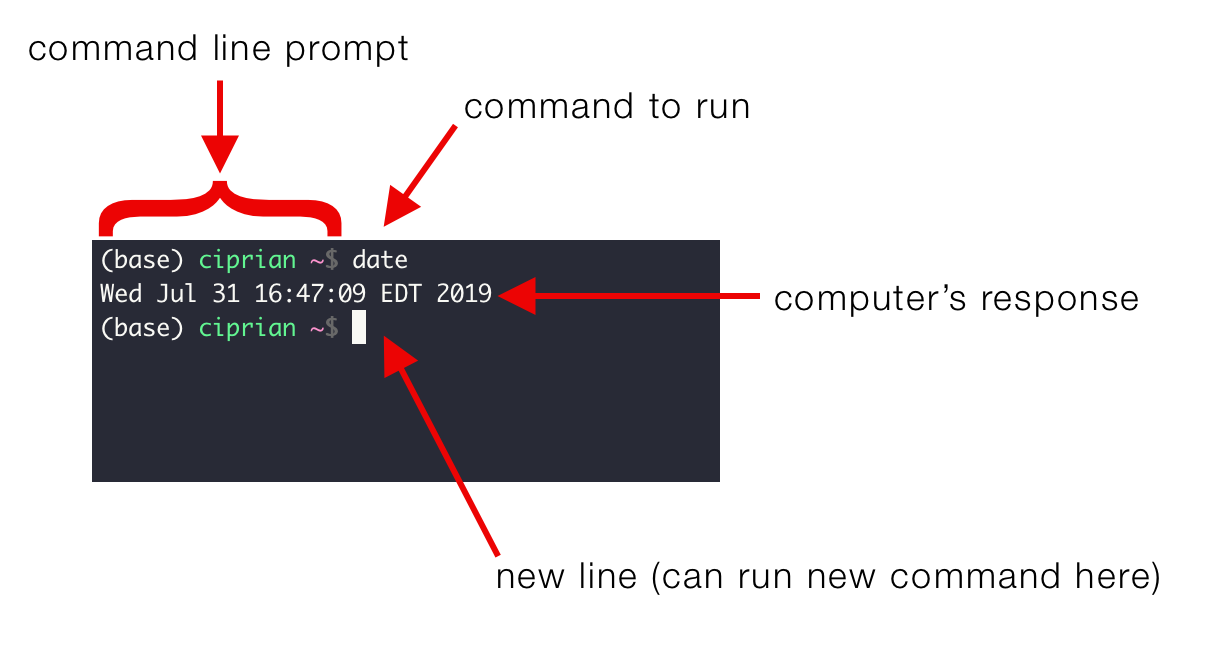
It is often handy to launch a shell from RStudio, hear me out.
Why? Because RStudio makes an effort to put you in a sane working directory
(the current project).
To launch a shell within RStudio: Tools > Terminal
The shell is often called the “terminal”.
One way to launch it is via Spotlight Search: hit Command⌘+Space and start typing “terminal”.
There are many possible shells you can end up in.
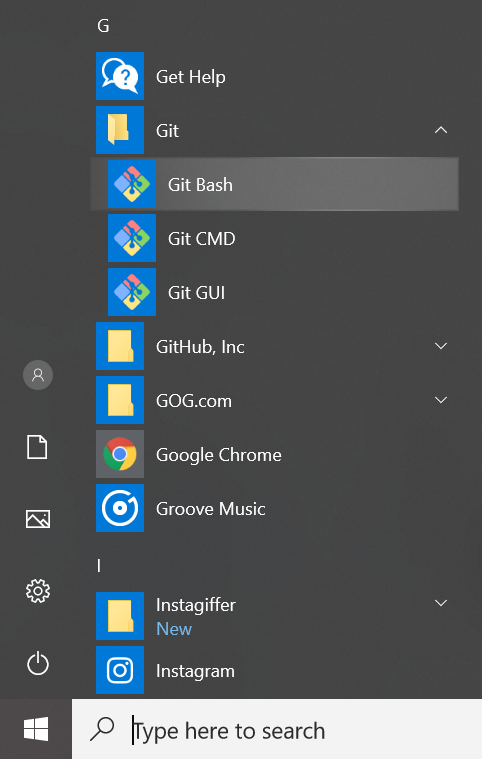
Unless you know better, use the Git Bash shell. This is the shell that ships with Git for Windows (so, you will have it on your system once you install Git).

Git installed?Go to the shell and type:
This should give you the path to your Git executable.
Let’s also check which version you are using:
If you see something like git: command not found you (likely) don’t have Git intalled.
Let’s fix that.
Git (if you haven’t)You need Git, so let’s install it.
Install Git for Windows, also known as msysgit or “Git Bash”, to get Git in addition to some other useful tools, such as the Bash shell.
NOTE: When asked about “Adjusting your PATH environment”, make sure to select “Git from the command line and also from 3rd-party software”. Otherwise, accept the defaults.
You should now have a Git executable at: C:/Program Files/Git/bin/git.exe.
Install the Xcode command line tools (not all of Xcode), which includes Git.
In the terminal type:
GitType:
What user name should I use?
This doesn’t matter. Your commits will be labelled with this user name though, so make it informative to potential collaborators (and future you).
What email should I use?
This must be the email associated with yourGitHubaccount.
Check out the Software Carpentry for more things you can do with git config.
You can also set your Git user name and email from within R thanks to the usethis package.
# Install usethis (if needed)
# install.packages("usethis") # or pak::pak("usethis")
library(usethis)
use_git_config(user.name = "Serena Defina", user.email = "sere.def@gmail.com")I do quite a bit of R package dev, so I have
library(usethis)in my.Rprofilefile.
So, you have Git working on your local machine (yey). Now it’s time to talk to GitHub.
Recall: GitHub is a remote Git server.
To interact with it, we have to make a request containing some credentials.
In English please: we need to prove that we are a specific GitHub user, who’s allowed to do whatever we’re asking to do.
There are two ways (or “protocols”) to communicate with a remote server, each using different credentials.
HTTPS or SSH?
GitHub recommends HTTPS, presumably becasue it is easier to get working (especially for Windows users). Tech-y people will die on the SSH hill.
Anyway, don’t worry too much. This is not an all-or-nothing decision and it’s a relatively easy to revisit later.
Remember usethis?
Copy the generated PAT to your clipboard and use it every time a Git operation asks for your password (very confusing, I know)
…but best to store the PAT right now so you won’t loose it:
Back to R:
Paste the PAT in response to the dialogue in the console.
Done! Check your set-up with:
*Assuming you are signed in
Go to: https://github.com/settings/tokens
Click on your profile icon (top right corner) > Settings > Developer Settings (at end of the sidebar menu) > Personal access tokens > Tokens (classic)
Click on Generate new token > Generate new token (classic)
Select scopes: “repo”, “user”, and “workflow” (default from usethis)
Click on Generate token.
Copy the generated PAT to your clipboard.
Provide this PAT next time a Git operation asks for your password… or store it in your favourite password manager.
Here is what is going to happen:
GitHub!),ssh-agent on the client (aka your computer!).Some advice
[It’s normal to associate multiple public keys with your GitHub account. You should probably have one key pair per computer (at least, I do this).]{m-space}
You can increase security even more by protecting the private key with a passphrase.
However, that requires some additional configuration (nothing mad, have a google at it)
Go to Tools > Global Options… > Git/SVN > Create SSH Key…
[RStudio will prompt you for a (optional) passphrase.]{m-up-space}
If you’re completely new at all this, skip the passphrase for now. You can implement it next time, when you are more comfortable with system configuration.
Click on Create
RStudio will generate and store the files ~/.ssh/id_ed25519 and ~/.ssh/id_ed25519.pub.
SSH keys file names
SSH key files follow the typical pattern id_<something>.pub (the public key) and id_<something> (the private key), where <something> reflects the key type.
rsa historically has been the most common. However, these days GitHub encourages users to generate SSH keys with the ed25519 algorithm instead (default option).
Create the key pair:
*a meaningful comment could be the name of your computer, for example
If your system is too old to support the ed25519 algorithm, substitute “ed25519” with “rsa -b 4096”.
Accept the proposal to save the key in the default location (just press Enter)
You have the option to protect the key with a passphrase.
If you’re completely new at all this, skip the passphrase and implement it next time, when you are more comfortable with system configuration.
We need to tell your ssh-agent about the key.
Caution
Things get a little OS-specific around here. When in doubt, consult GitHub’s instructions for SSH, which is kept current and accounts for more unusual situations than I can.
Make sure ssh-agent is enabled:
You should see something like “Agent pid <some number>”.
If this fails, try again as superuser (sudo su > eval "$(ssh-agent -s)" > exit).
Add your key to the ssh agent:
If you set a passphrase, you’ll be challenged for it here.
The last thing we need to do is store a copy of your public key on GitHub.
Go to Tools > Global Options… > Git/SVN.
You should see something like ~/.ssh/id_ed25519 in the SSH Key box.
Click on View public key and copy that to your clipboard.
Open the ~/.ssh/id_ed25519.pub file (in whatever editor) and copy its content.
Some examples: pbcopy < ~/.ssh/id_ed25519.pup (on macOS), xclip -sel clip < ~/.ssh/id_ed25519.pub (on Linux), clip < ~/.ssh/id_ed25519.pub (on Windows)
2. Got to GitHub and register the public key
Click on your profile pic (upper right corner) > Settings > SSH and GPG keys > New SSH key. Paste your public key in the “Key” box. Give it an informative title (e.g. the descriptive comment you used during key creation). Click “Add SSH key”.
Thank god, you are now set-up and ready to use Git.
We all deserve a break.
But first, one last test for peace of mind:
DailyGit / GitHub workflows

Now that we are done setting up, it’s about damn time to see what was all that pain even for:
In this section, we’ll go over four realistic workflows you may use in you daily Gitventures
GitHub first: the easiest way to get a working project.GitHub first: a deeply pragmatic way to get pre-existing work onto GitHub.GitHub last: the “proper” way to connect existing local work to GitHub, when there’s already a Git history.(1) Create a repositoryIt’s (finally) time to make your first repository!
Go to
GitHuband make sure you are logged in.
Click on your profile pic (top-right corner) > Repositories > New
Fill some info in:
Repository name: approach this as you would a variable name: descriptive but brief, no spaces. Letters, digits,
-,., or_are allowed.
Description (for humans): It’s nice to have something here, so you’ll see it appear in theREADME. e.g. “Analysis of the stuff”.
Visibility: Public or private (don’t sweat it, can always change it later)
Add README: generally a good idea, this is the landing page for your repo
Templates,.gitignoreand licences we will talk about in a moment, ignore for now.
Click on Create repository
Now, on the repo page, click the big green button that says <> Code
Copy a clone URL to your clipboard.
Remember when we talked about HTTPS and SSH? Here they are again.
The type of URL you copy determines the protocol GitHub will use, so if you have PAT set up, copy the HTTPS URL, if you are using SSH keys, go for SSH.
Now, you have a few ways to get this onto your computer…
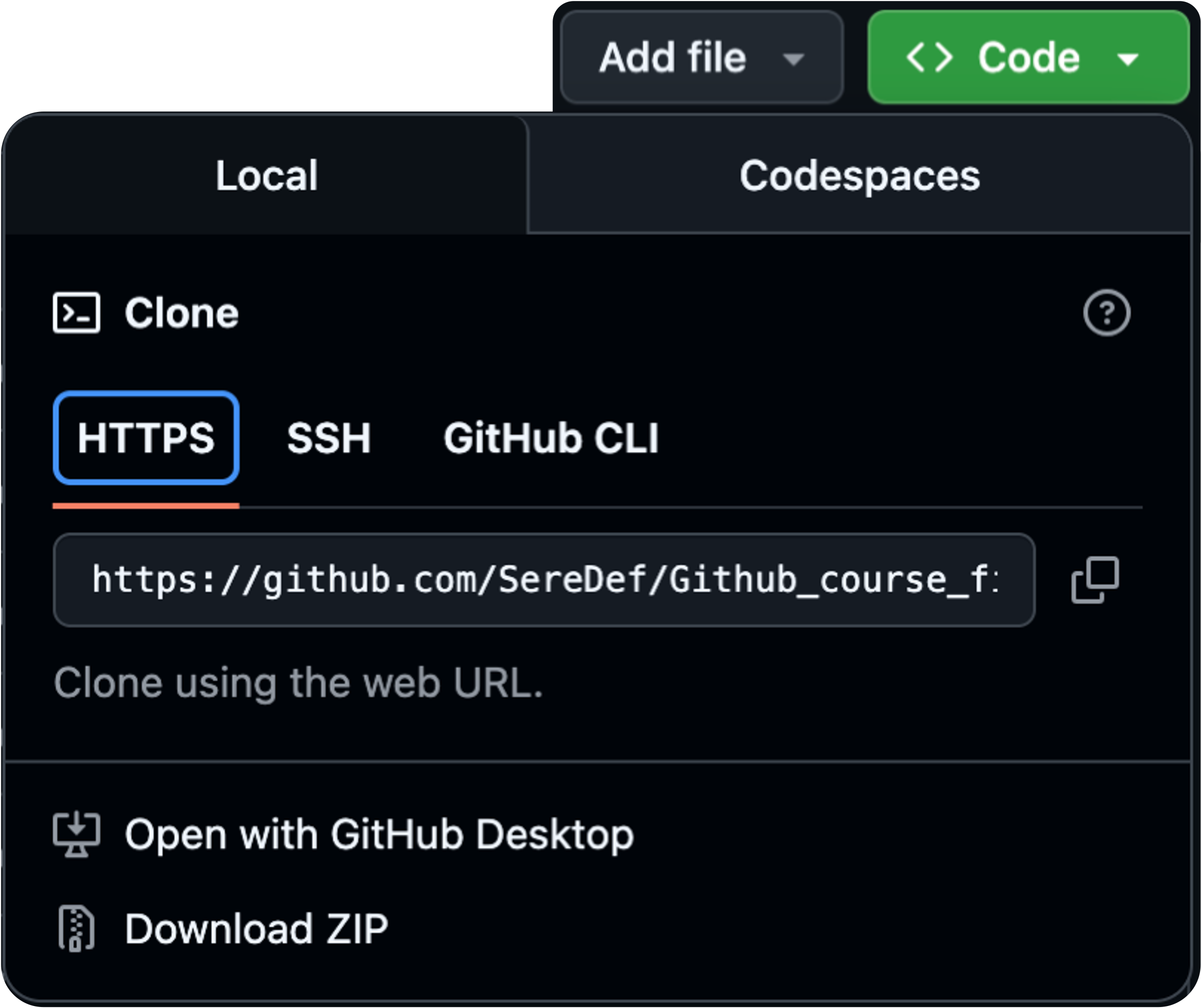
Let’s use the URL we just copied from GitHub.
If your shell cooperates, you should be able to paste the whole
https://...bit, but some shells are not (immediately) clipboard aware. In that sad case, you must type it (accurately), best of luck sailor!
This should look something like this:
Where am I?
Take charge of – or at least notice! – what directory you’re in.
pwd displays the working directory. cd is the command to change it.
Remember usethis?
usethis::create_from_github(
"https://github.com/<YOUR-USERNAME>/<YOUR-REPOSITORY>.git",
destdir = "~/path/to/where/you/want/the/local/repo/"
)The first argument (repo_spec) accepts various forms of GitHub repo specifications (see the docs). We will use the URL we just copied from GitHub.
The destdir argument specifies the parent directory where you want the new folder (and local Git repo) to live. If you don’t specify it, usethis defaults to some very conspicuous place, like your Desktop.
Start a new Project:
File > New Project… > Version Control > Git > In “Repository URL”, paste the URL of your new
GitHubrepo > Accept the default project directory name (i.e. theGitHubrepo name) > And pay attention to where the Project will be saved locally > Check “Open in new session” (that’s what you usually want in real life) and click on Create Project
Troubles in paradise?
Do you NOT see an option to get the Project from Version Control? Restart RStudio and try again.
Still no luck? Check out these troubleshooting tips.
git remote show origin tell you?commit to itEvery time you finish a valuable chunk of work (probably a few times a day)
Make the repo your working directory
Let’s make a small change:
What happened?
I am happy with this change, now let’s stage (“add”) and commit to it
Let’s make a small change: e.g., adding the line “This is a line from RStudio” to the README.
Save your changes.
Open the Git tab in upper right pane (or wherever you have put your “Environment” pane, you eretic).
Check the “Staged” box for the files you want to commit and click (surprise) Commit
Type a message in “Commit message”, e.g. “Commit from RStudio”.
Click Commit.
GitHub about this?Time to share (push) your changes with the world (or with GitHub anyway)
Now, this will seem counterintuitive, but first let’s stop and… pull from GitHub.
I doubt anything will happen (i.e. you’ll get "Already up-to-date.") but this is a good habit to catch… can you guess why?
Git noticed the changeGitHub registered the changeGitHub webpage?(2) Exisiting project, GitHub firstWhat if you already have an existing project, somewhere in a directory on your computer?
If this is not (yet) a Git-tracked project, it should easy-easy
GitHub (whithout a README if happen to already have one)Don’t push any data, for the love of God
Take a moment to stop and think: this is about to leave your local computer and go to GitHub. Make sure you did not commit any data, passwords or anything else you don’t want to share with the world.
.gitignore, everyoneYou can absolutely keep a file locally in a repository, without ever committing it to the GitHub repo. Just let it sit there, without staging it. No harm done.
If this is a long-term situation, however, you may find it tidier to list the file in .gitignore. This is a special file that tells Git to just ignore things inside a local folder.
GitHub repoGitHub (you can use a Private one if you are feeling paranoid).gitignore to make sure your sensitive files are protectedGitHub, and rejoice!GitHub first?This is a somewhat technical but important point about Git.
There is a big advantage of the GitHub first, then RStudio/R workflow:
GitHub repo is already configured as the origin remote for your local repomain branch is now tracking the main on GitHub.The practical implication is that you are already set up to push and pull. No need to fanny around setting up Git remotes and tracking branches in the shell.
Wait, what are you talking about?
Let’s a look at:
(3) Existing project, GitHub lastIf you have followed any other Git tutorial though, chances are that you started from:
In this situation, you will have an existing project, that is already a Git repo (with a history you care about), but it does not have a remote GitHub repo yet.
This may be less ideal for a newbie, because there are more opportunities to get confused and make a mistake.
But it’s not the end of the world… let’s tackle this.
GitHub repoYet again, usethis to the rescue
Note: you must have a personal access token (PAT) configured for this.
What will happen:
First, create a new repo on GitHub (you already know how), but:
README)Now, in the shell:
Push and cement the tracking relationship between your local main branch and main on GitHub (or whatever your default branch is)
(4) Contribute to someone else’s workThe open-source community is cozy, and you are always welcome 😄
POV: you want to get a copy of someone else’s repo (OWNER/REPO) and propose a change.
Here is what needs to happen:
OWNER/REPO): i.e. create a remote copy of the source repo on GitHub.YOU/REPO) on your computerupstream remotemain branch (or whatever the default is) to track upstream/main (instead of origin/main)OWNER, to propose your changes.usethis::create_from_github(
"https://github.com/OWNER/REPO",
destdir = "~/path/to/where/you/want/the/local/repo/",
fork = TRUE
)This will complete steps 1-4, putting you in perfect position to:
(a) sync up with ongoing developments in the source repo and
(b) propose new changes from your fork.
If you are using RStudio, it will also create and open an RStudio Project for you.
Let’s check what happened:
Assuming you’re already on the source repo page: click on Fork (upper right corner) > accept the defaults > click on Create fork
This creates a copy of REPO under your GitHub account and takes you there in the browser.
Now clone YOU/REPO (you already know how).
Next, we need to make sure we stay current with developments in the source repo:
upstream remoteCopy the URL of the source repo (OWNER/REPO).
It’s easy to get to from your fork (
YOU/REPO), via the forked from link in the upper left.
Then:
Now that upstream is configured, especially if you configured it for the first time, do:
This should get you nicely up to date with all the remote info you need.
2. Configure your local main branch to track upstream/main.
Last thing:
Ok, let’s check what happened:
Done! (finally)
If you found this kind of long and tedious, consider using usethis::create_from_github() next time…
When working on a fork, it is a good idea to never mess with the main branch.
Now, just make your changes and commit them as usual.
The last thing we need to do is let OWNER know about the chage we want to propose.
This pushes the local change to your copy of REPO on GitHub and opens a browser window.
All is left for you to do is click Create pull request to make the PR.
GitHub will ping OWNER for you, they will review our pull request and the rest is out of your hands.
Make sure you first push your changes to the remote, e.g.:
Then, go to the your fork’s page on GitHub and select the BRANCH-NAME.
You should see a yellow banner, with a Compare & pull request button, click on that > compare across forks > choose the “base branch” (this is the branch of the upstream repository you’d like to merge changes into, probably
main)
Add a title and description and hit Create pull request
Why you should never commit to main (on a fork)
When you do commit to main, it creates a divergence between that branch’s history in the source repo vs. your repo. Nothing but pain will come from this.
Instead, treat main as read-only: it will make life much easier when you want to pull upstream work into your copy.
The OWNER of REPO will also be happier to receive your pull request from a non-main branch.
Why track upstream/main instead of origin/main
So that a simple git pull pulls from the source repo, not from your fork.
It also means a simple git push will (attempt to) push to the source repo, which will almost always be rejected since you probably do not have permission. This failure will alert you to the fact that you’re doing something questionable, while it’s still easy to back out.
GitHub project you would like to contribute to. If you don’t have one in your heart (yet) you can pick this workshopA few more tips + fun things you can do with GitHub

GitHub PagesGitHub offers static website hosting directly from your repository via GitHub Pages. With very minimal set-up you get a website that:
Git history and rollback capability)But… what can I use it for?

GitHubEven without Pages, the browsability of GitHub makes your work accessible to people who care about your content but who don’t (yet) use Git themselves.
Here are some tips to make your repos look extra nice:
READMEs are quite powerfulYou already know that GitHub renders README.md at the top-level of your repo (as a landing page). But did you know you can have multiple README.md files, for example, for any logical group of files or mini project-within-your-project (i.e. a sub-directory in your repository). You can use the README.md to annotate these files, collect relevant links, etc.
GitHub will nicely render tabular data in the form of .csv (comma-separated) and .tsv (tab-separated) files. Take advantage of this!
Python/R notebooks… it’s all fair gameGitHub Organizations are excellent tools for interactive educational courses.
Check out this tutorial
GitHub Search that for youDid you ever find a function that seems useful has no examples? Or is poorly documented? Wouldn’t it be nice to find functioning instances of it “in the wild”?
The GitHub Search box is just what the doctor ordered.

For example, wonder how packages on CRAN use the llply() function from plyr?
GitHub Search has loads of useful setting and options.
file finder
Whenever you are on a repo’s page, you can press t to
activate the file finder.
This is very helpful, especially when there are files tucked into lots of subdirectories.
When you’re viewing a specific file, you can press y to get a permanent link to that specific file or specific line(s) inside that file.
What’s a permanent link?
Good question. This is a link that will not break, even when the file is deleted, renamed or if lines get inserted / deleted.
They love that!
Speaking of links, did you know that you can create a link that takes people directly to an editing interface in the browser.
Behind the scenes (assuming the click-er is signed into
GitHub, and they are not you) this will create a fork in their account and send you a pull request for the changes.
An edit link would look something like this:
GitHub ActionsAutomated (and reproducible!) workflows can be built directly into GitHub with Actions.
But… what can I use it for?
There is a whole marketplace of Actions out there.
Also check this tutorial for researchers.
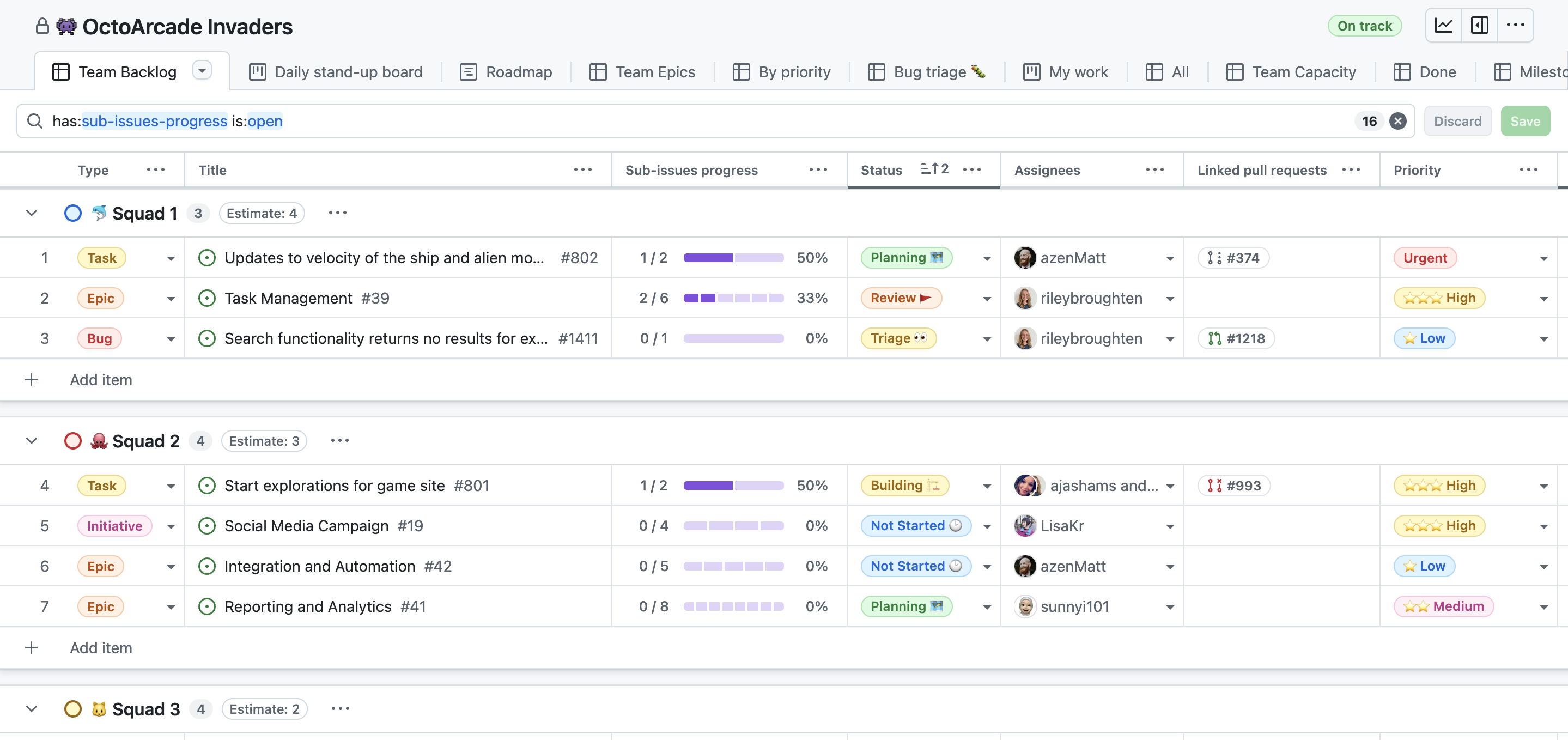
GitHub ProjectsGitHub provides built-in tools for planning, tracking, and coordinating work so you can manage entire projects alongside your code and writing.
GitHub Projects sits on top of issues and pull requests as a flexible table, board, and roadmap that you can filter, sort, and group to match your workflow.
You can delete the “local” repo whenever you like (it’s just a regular directory on your computer).
But, if you are doing it in the shell, use:
-rf will save you some time saying “yes” delete this hidden git file a gazillion times
You also want to remove the remote repo?
In the browser, go to your repo’s landing page > Click on Settings > Scroll all the way down, click on delete repository and do as it asks.
RStudio will provide you with pretty ways to see the differences between versions.
In the shell, use:
There you have it, you are now an honest GitHub citizen.
Now just “lather, rinse, repeat”.
The tools and workflows we saw today are widely regarded as current best practice, yet, sadly, we generally neither practice nor preach it in academic settings.
…but that was until you came around!
Thanks for listening to me <3
See you on GitHub
xoxo,
SereDef
Software Carpentry - Version Control with Git
Happy Git and GitHub for the useR by Jenny Bryan
Bryan, J. (2018) Excuse Me, Do You Have a Moment to Talk About Version Control? The American Statistician, 72(1), 20–27.
Perez-Riverol, Y. et al. (2016) Ten Simple Rules for Taking Advantage of Git and GitHub. PLOS Computational Biology, 12(7): e1004947.
Git in Practice by Mike McQuaid
GitHub’s own training materials
Oh My Git!: a free and open source interactive game for learning Git.